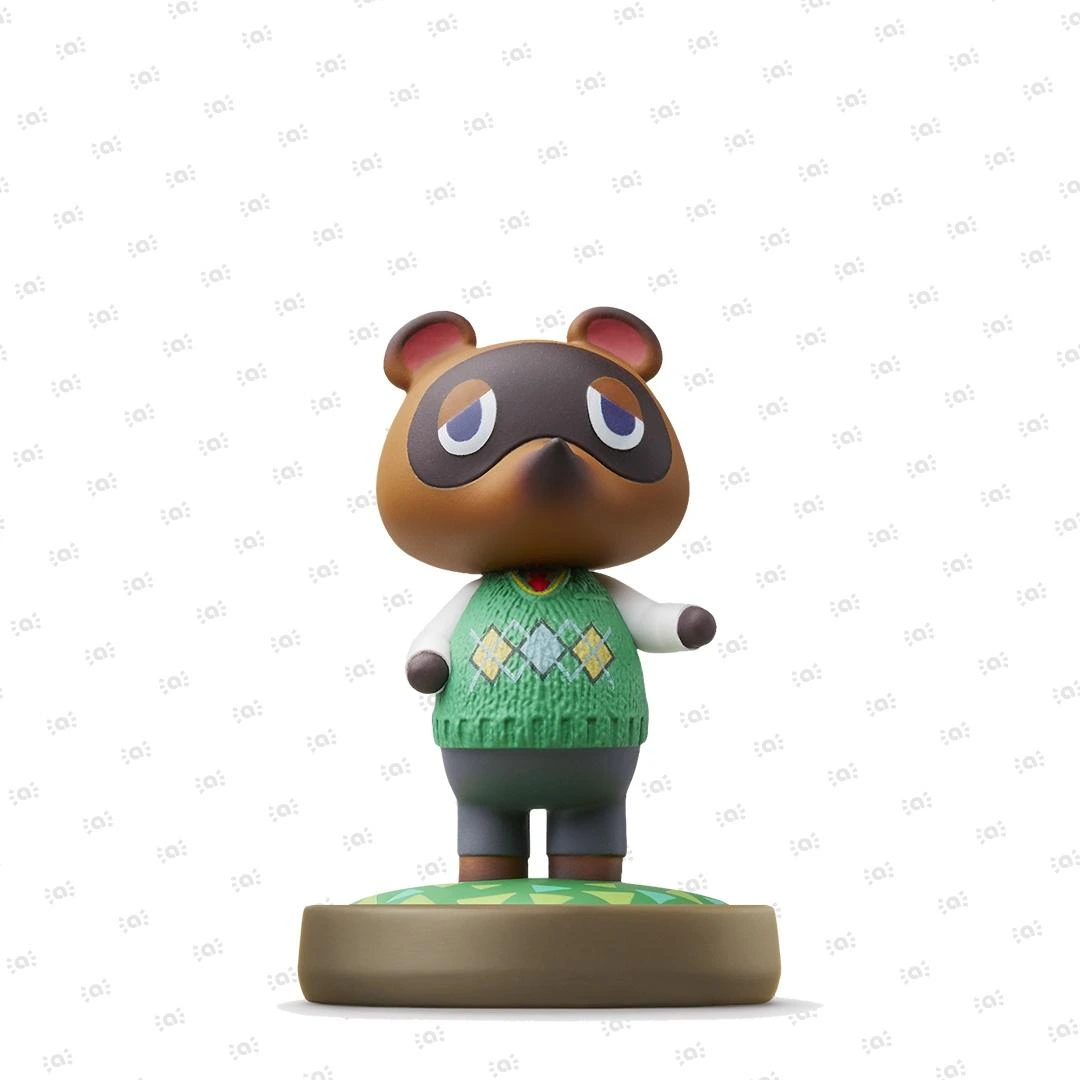

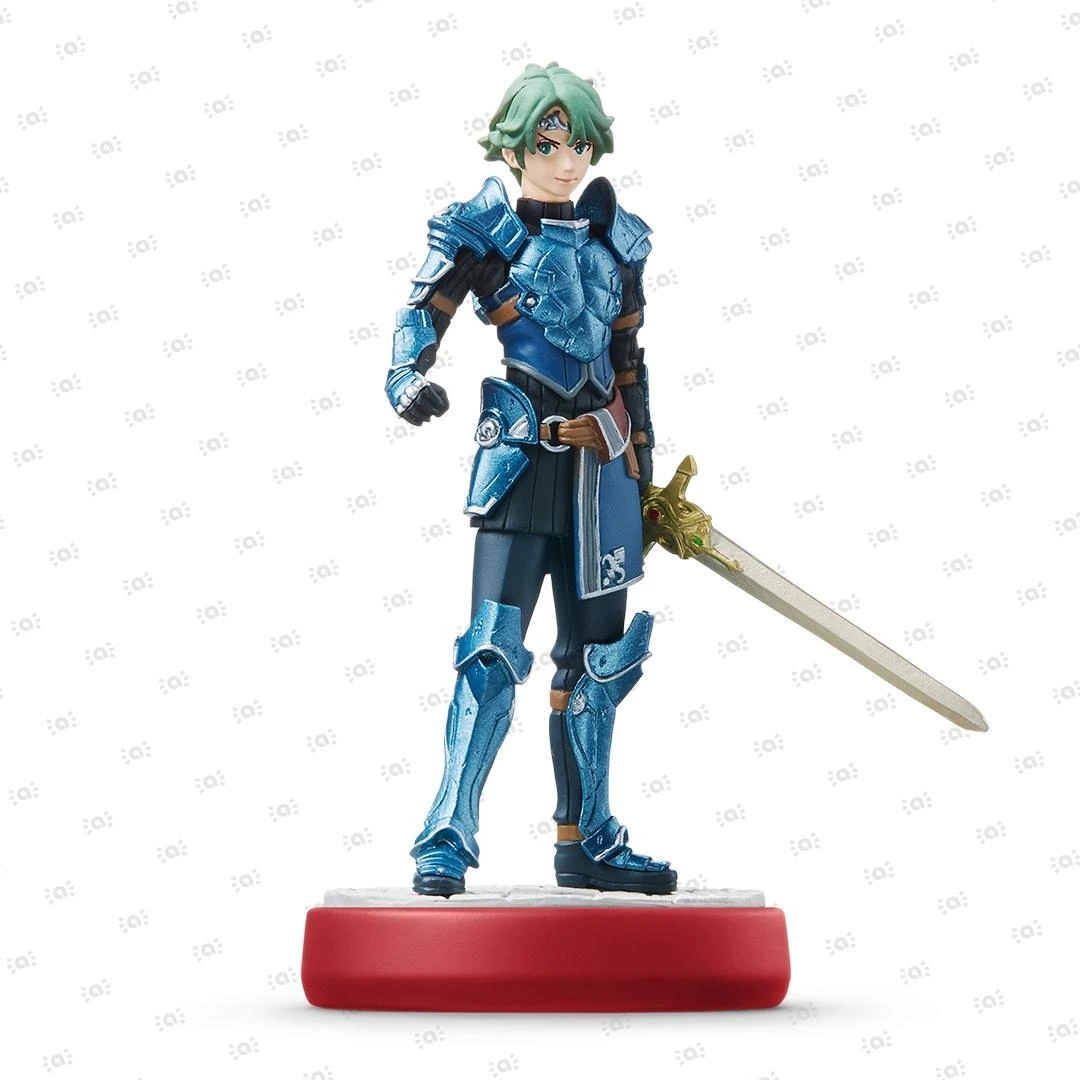
 Fire Emblem Collection
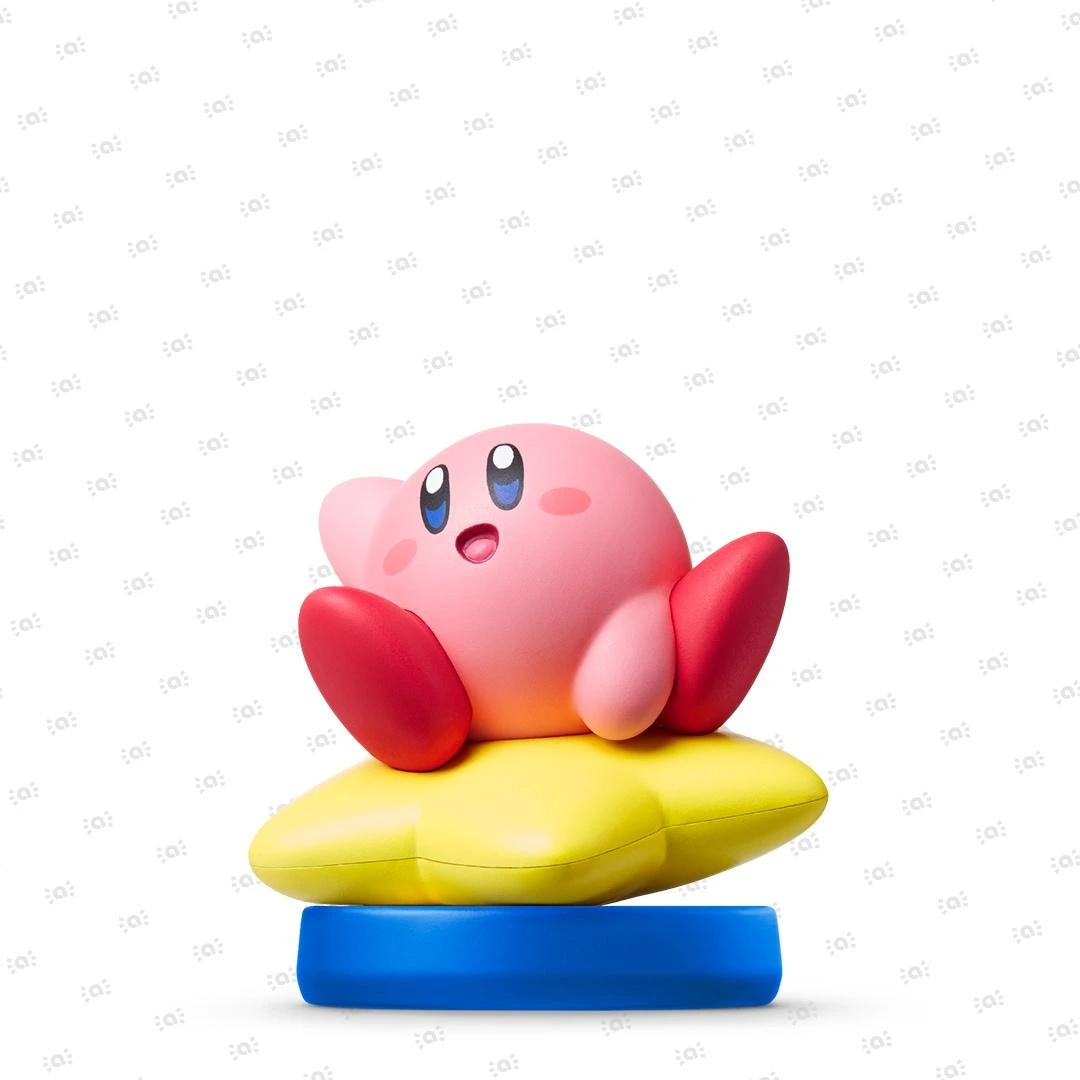 Kirby Collection
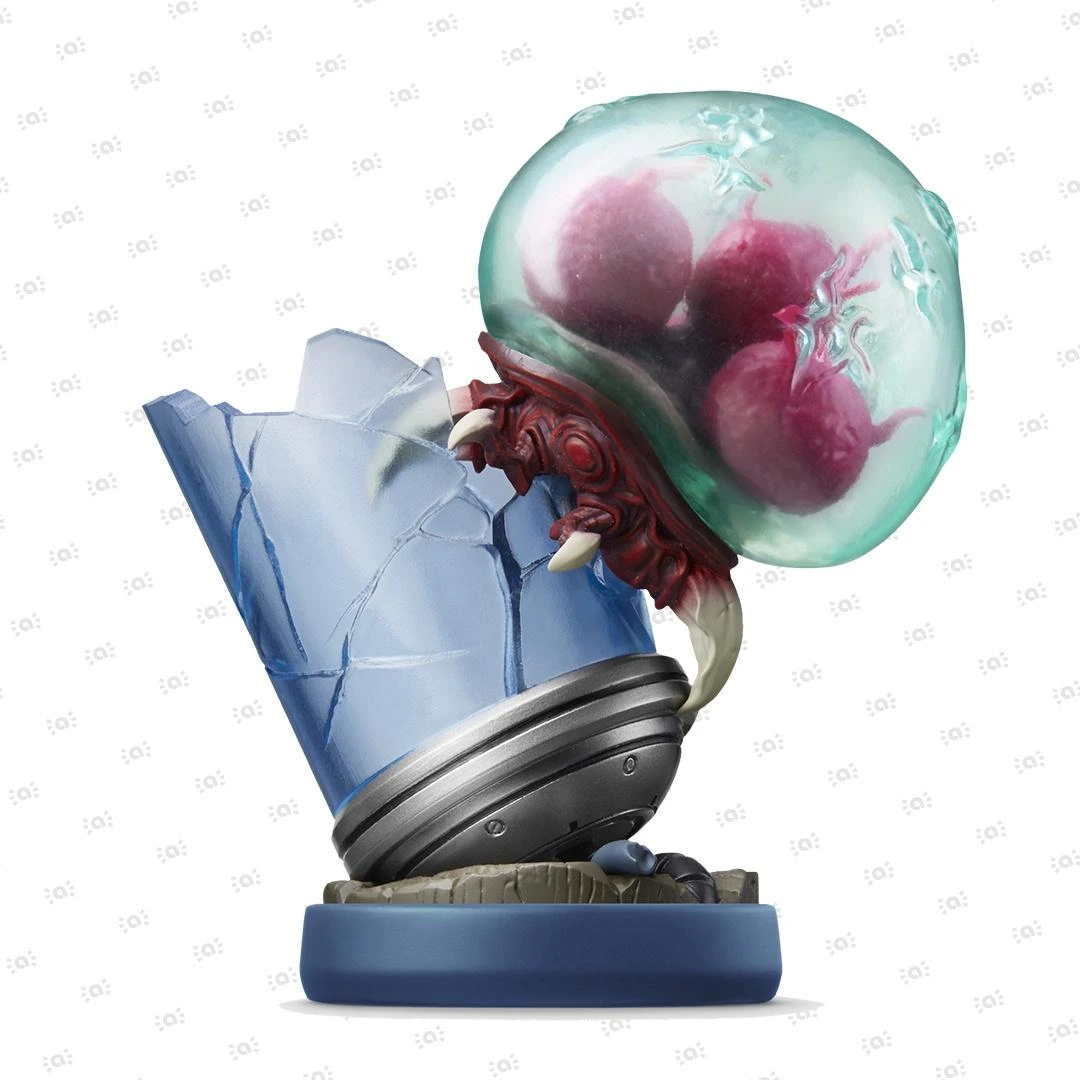 Metroid Collection
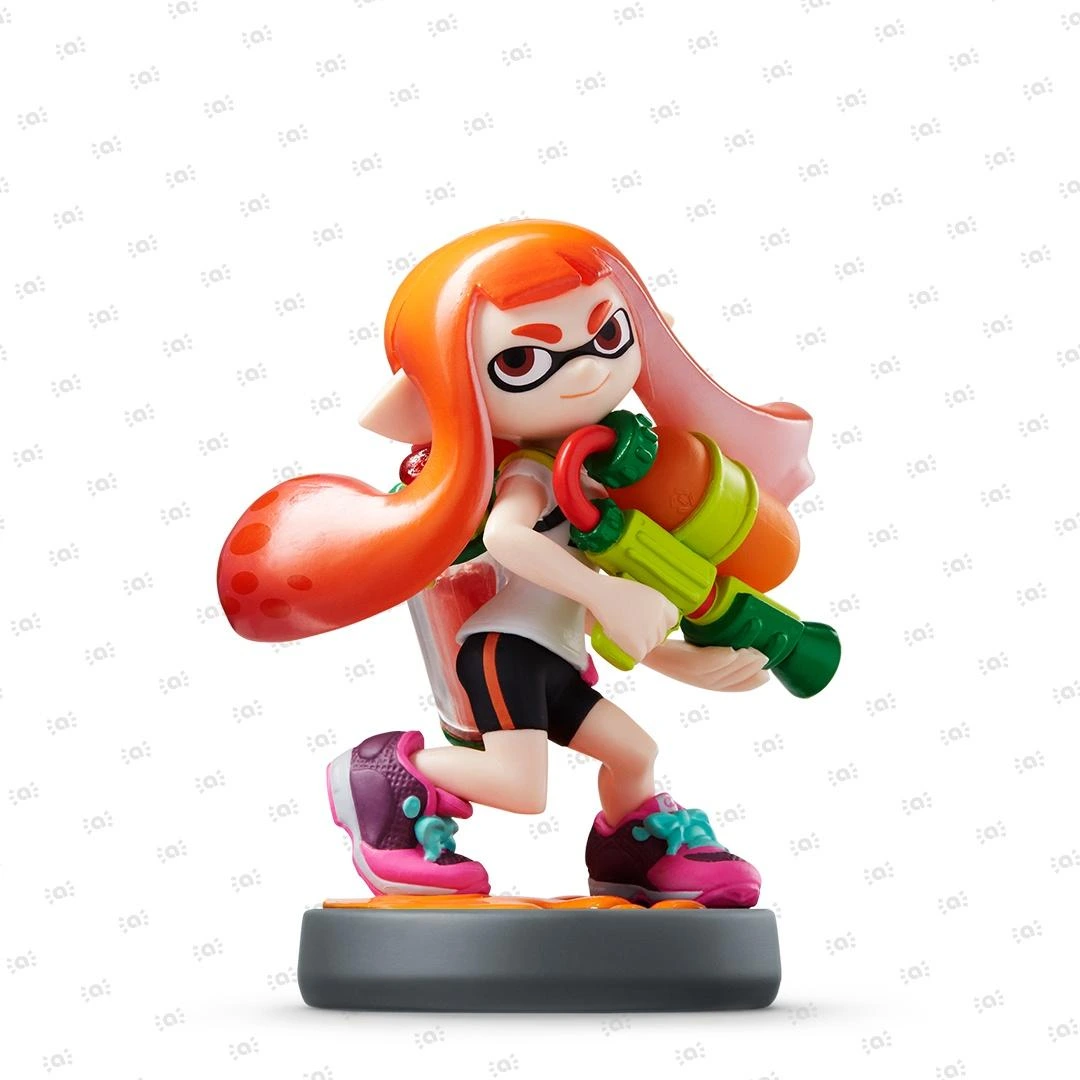 Splatoon Collection
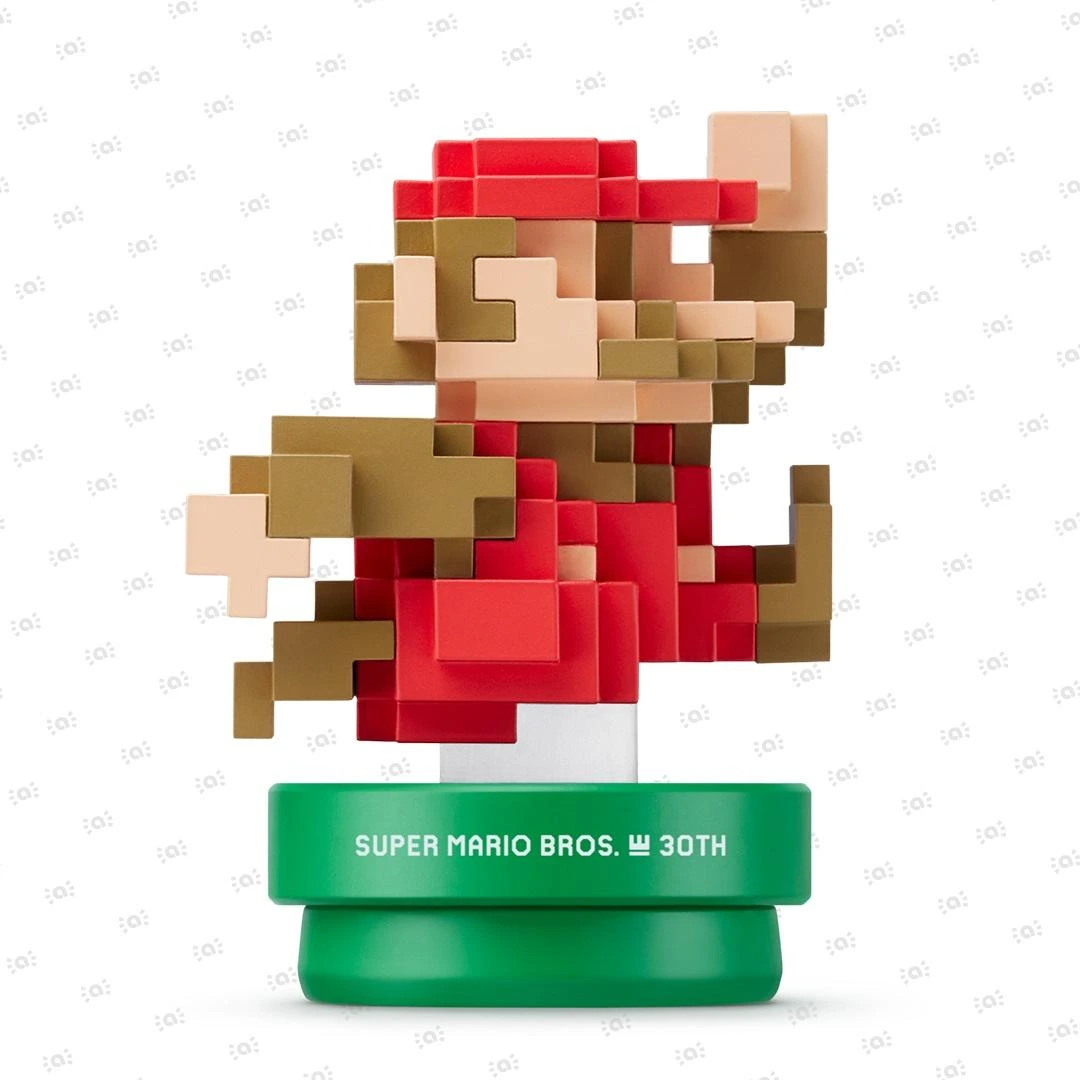 Super Mario Bros. 30th Anniversary Collection
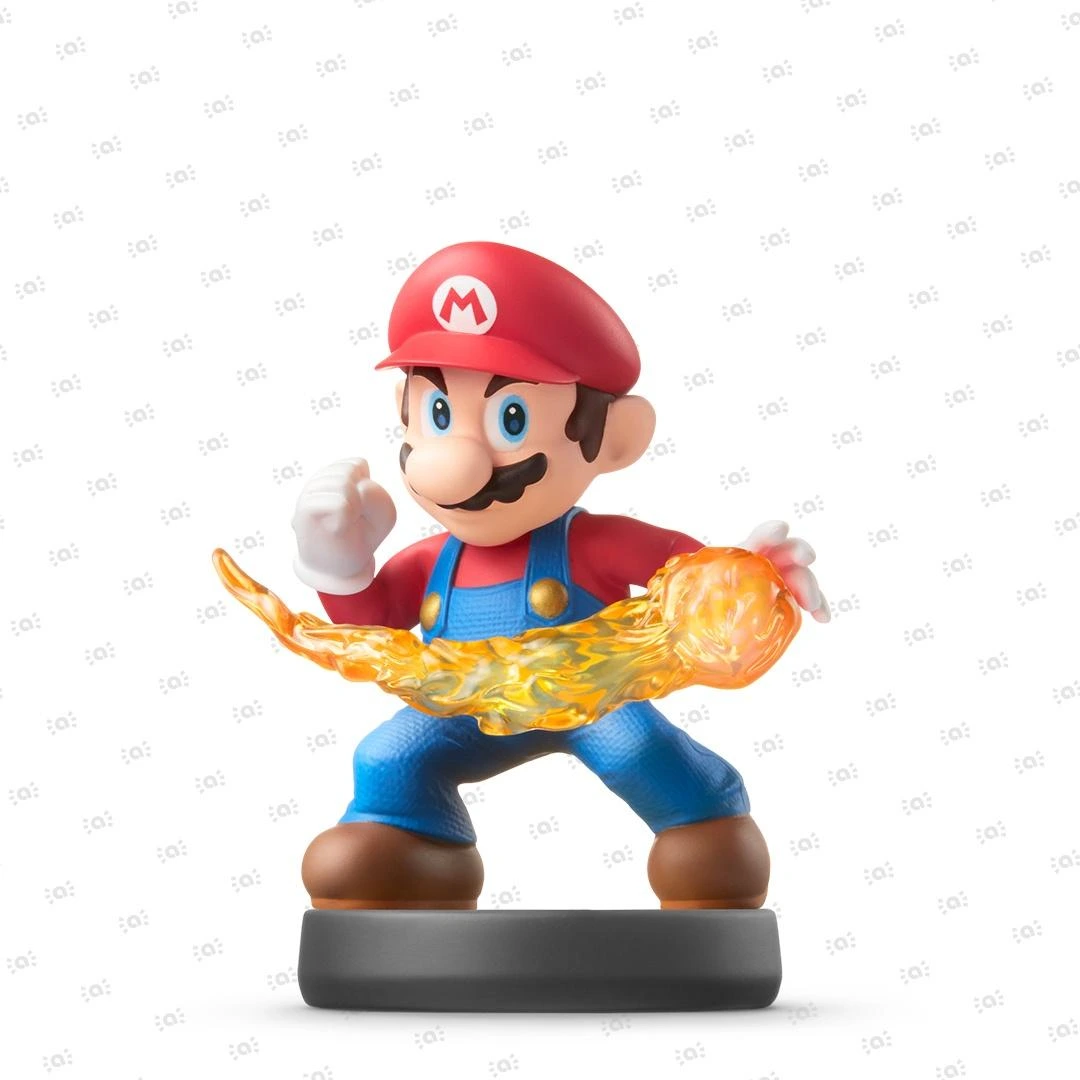 Super Smash Bros. Collection
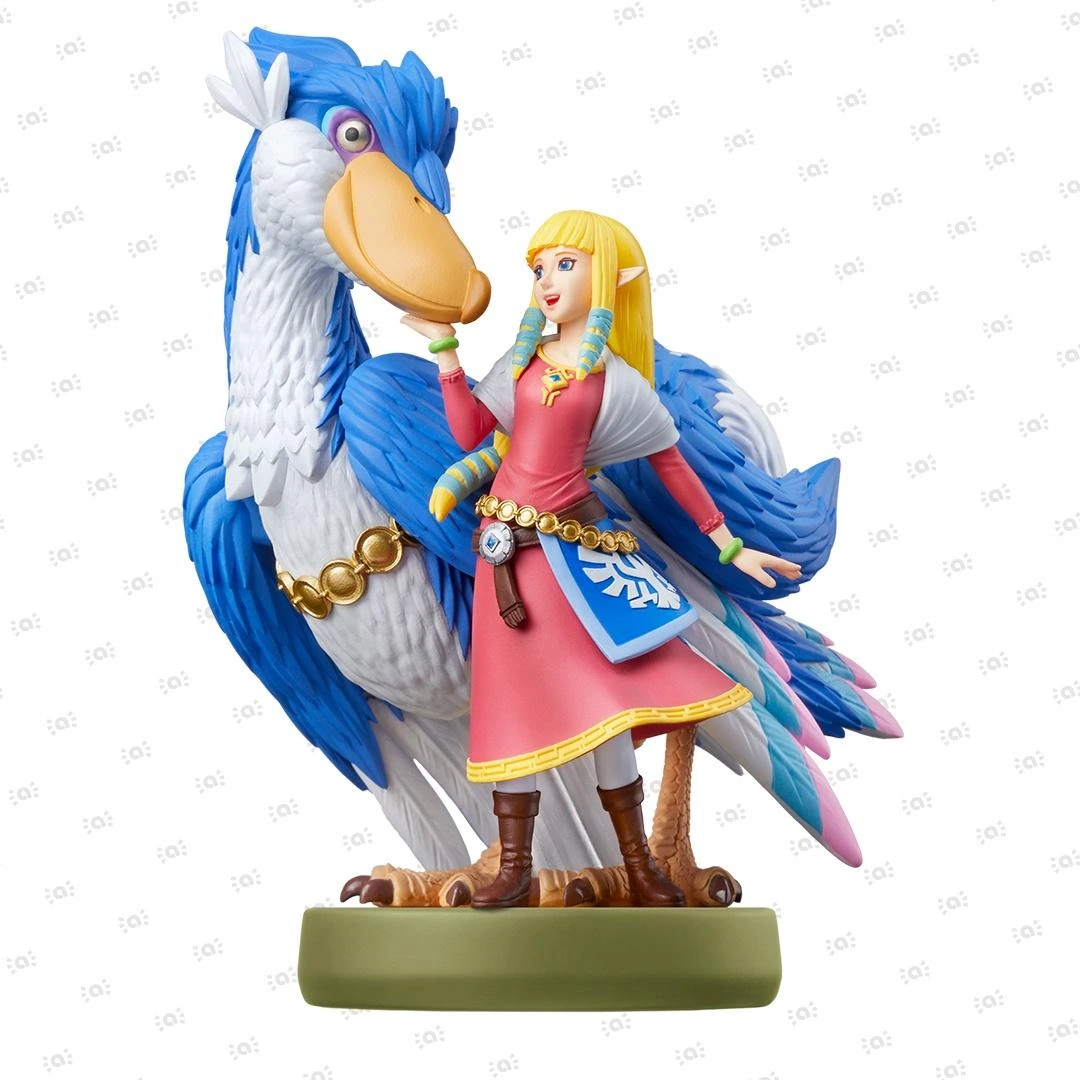 The Legend of Zelda Collection


How to Use Handheld Mode Boost on Nintendo Switch 2
Follow these steps to enable or disable the Handheld Mode Boost setting on Nintendo Switch 2.
Information
When enabled, Handheld Mode Boost causes Nintendo Switch software being played in handheld or tabletop mode to run as if it were being played in TV mode.
Complete these steps
- Open System Settings from the HOME Menu.
- Scroll down through the menu on the left-hand side and select System.
- Select Nintendo Switch Software Handling.
- Select Handheld Mode Boost to enable or disable this setting.
Additional information
- While enabling this setting can result in improved visuals, it can also increase the console's power consumption.
- The effects of Handheld Mode Boost will vary based on the software. Some Nintendo Switch software may be unaffected. This option has no effect on Nintendo Switch 2 software.
- Because this option forces the console to operate as though it's in TV mode, some instructions may be incorrect and some functions may fail to operate correctly.
- Handheld Mode Boost may prevent Nintendo Switch software from using the console's touch screen and will cause attached Joy-Con 2 controllers to be treated as a Nintendo Switch 2 Pro Controller.
- To use other controllers, you'll first need to detach the Joy-Con 2 controllers from the console.
